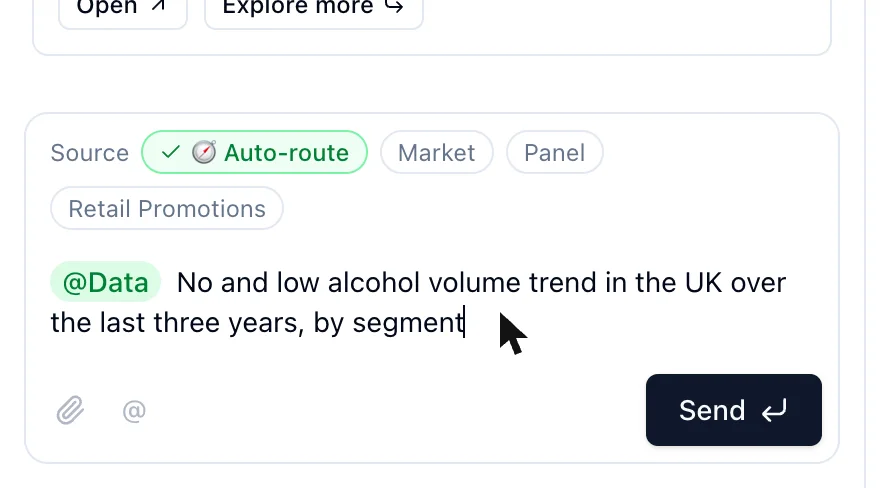
The composer is the box at the bottom of a project's chat. Its placeholder reminds you of the three things it accepts: Ask anything · @agent · #output…
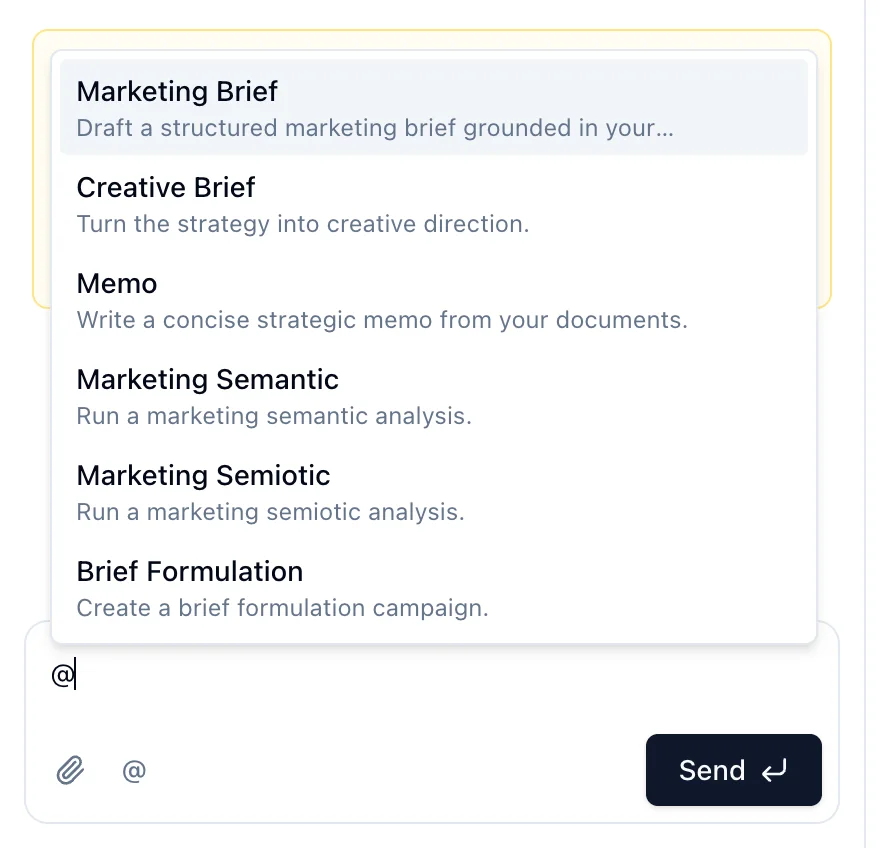
- Plain text goes to the assistant, which answers, orients you, or routes a clear request to the right agent.
- @agent calls a specialist. Type
@or click the@button, pick from the list, then write your brief. One agent per message. - #output references an earlier output of this project, so the agent reads it. Type
#and pick from the list. Reference as many as you need. - Attach files or a thread with the paperclip (see Add context).
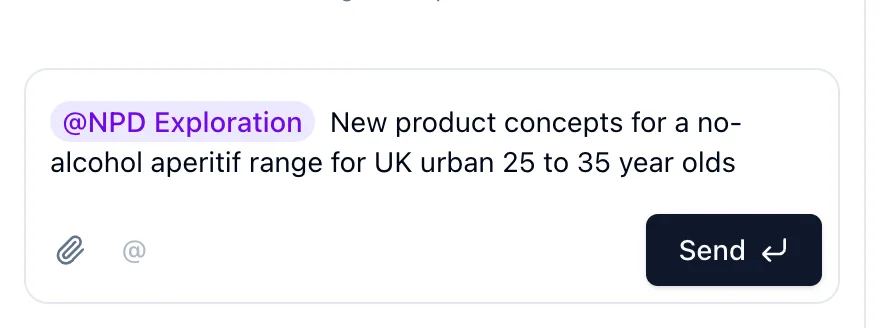
Enter sends. Shift+Enter adds a line. Escape removes the agent chip.
Suggestions. Under an answer, the assistant may propose up to three chips, each naming an agent. Clicking one fills the composer with the agent and a draft. Nothing runs until you press Enter. If you had typed text already, the chip is added and your text is kept.
One run at a time. The composer is unavailable while an agent is working in the project. Follow-up questions inside a Data or Insights output have their own box.
Sources for @Data and @Insights. When one of these agents is selected, a Source row appears. For Data, choose Auto-route or up to three datasets. For Insights, choose Documents, Web or Both.