
- In Insights files, click Add files, then Connect next to OneDrive or Google Drive.
- Sign in and accept read-only access.
- You come back to the Library with the drive browser open.
The connection belongs to the workspace: everyone browses through the account that connected it. For OneDrive it is that person's own OneDrive. SharePoint sites are not supported yet.
Adding files. The browser lists PDF, Word and Google Docs only. Tick files, or tick a folder to add everything under it, then Add N files. Up to 2,000 files per add. Files already in the library are skipped.
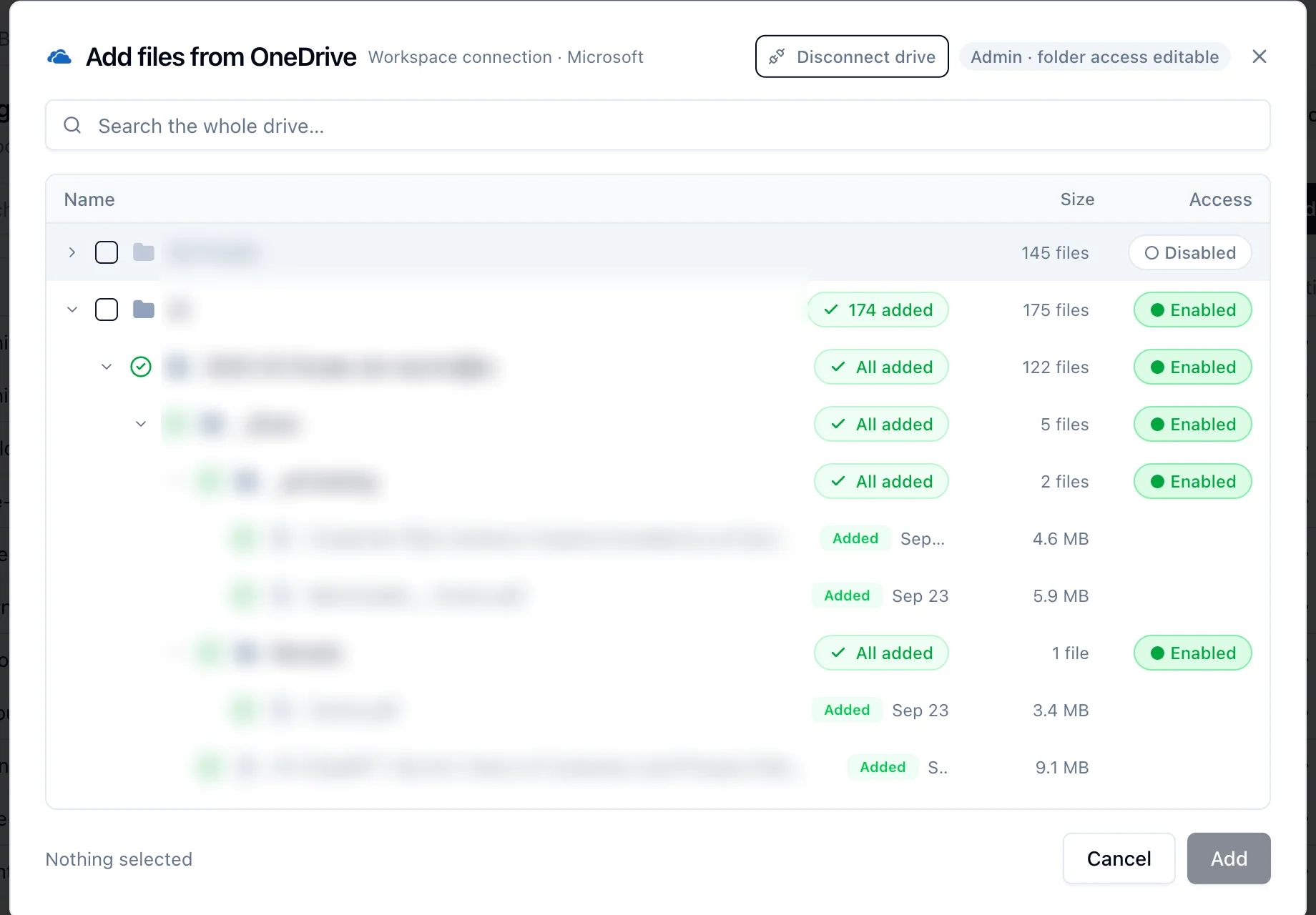
Folder access (admins). Each folder has an Enabled / Disabled pill. Members only see enabled folders and can only add from them. Enabling a folder enables everything below it.
Removing a folder. Hover a folder's coverage pill, All added or N added, and click Remove. The files stay in the drive; alphabrand stops using them.
Disconnect (admins) removes the drive from the workspace and clears its folder access. Files already added stay in the library.
Imports are a copy at the time you add them. Later edits in the drive are not picked up: remove the file and add it again.